Collapse
Fold app groups in the sidebar. Their windows stay open but hidden from the list.
WindowShelf gives you three ways to focus: collapse app groups you don't need, hide distracting windows entirely, or clear everything with Show Desktop — and restore it all in one click.

Fold app groups in the sidebar. Their windows stay open but hidden from the list.
Hide entire categories. Windows minimize or hide. Click the eye once to bring them back.
One action clears all windows. Trigger it again — WindowShelf restores exactly what was open.
Decide which app groups stay visible while you work. Toggle visibility without closing anything.
Stores window signatures before clearing the screen. Restore everything exactly as it was.
Group project-related windows into named shelves. Collapse everything else and focus on one shelf.
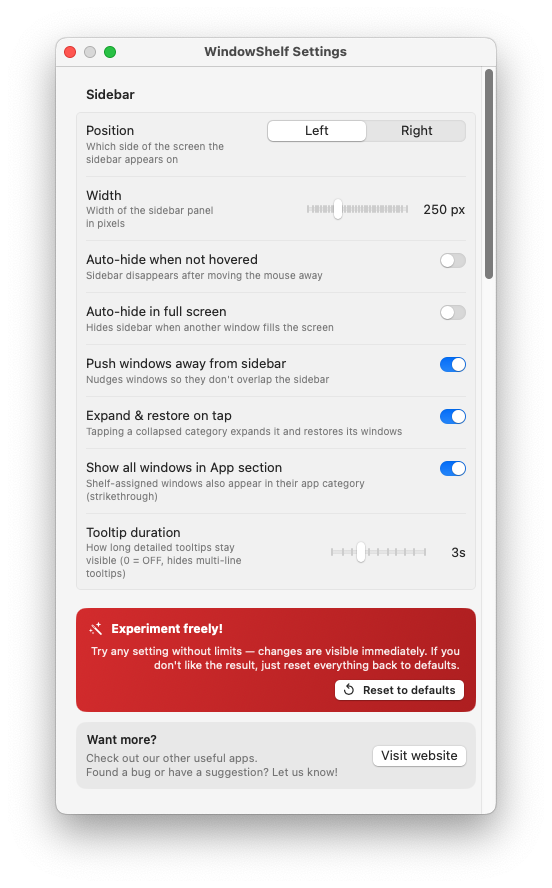
The sidebar itself hides after 1.5 seconds. Hover the screen edge to reveal it when needed.
Focus is not a single button — it is a habit. Here is a practical routine you can build with WindowShelf:
Step 1: Identify the task. Before you start working, decide what windows you need. A writing session might need your editor, a reference document, and a browser for research. Everything else is noise.
Step 2: Collapse everything else. In the sidebar, click the collapse chevron on every category you don’t need. Slack, Mail, Finder, Music — fold them all. The sidebar now shows only your working windows.
Step 3: Hide the distractions. For categories with persistent notifications that tempt you to peek (like Slack or Mail), use the eye icon to fully hide them. Their windows minimize, and the sidebar no longer lists them.
Step 4: Tile your workspace. Right-click each remaining window and tile them into position. Editor left, reference right, or maximize the editor if you want no distractions at all.
Step 5: Restore when done. Click the eye icons or expand collapsed groups when you’re ready to switch tasks. Everything comes back exactly as it was.
macOS has its own Focus feature (since Monterey) that silences notifications and can filter apps in the Dock and menu bar. But it does not manage windows. When you enable a macOS Focus, all your windows remain exactly where they are — overlapping, cluttered, and competing for attention. Notifications stop, but visual noise does not.
WindowShelf’s focus tools work at the window level. You selectively hide, collapse, or clear windows that do not belong to your current task. The two systems complement each other: use macOS Focus to silence notifications, and WindowShelf to silence the visual clutter those apps leave on your screen.
Deep work session. You need two hours of uninterrupted coding. Collapse everything except your editor and terminal shelves. Use Show Desktop if you want a completely blank canvas, then reopen only the two windows you need. The sidebar shows just two rows. Distractions are physically absent from your screen.
Monitoring role. System administrators or support agents need dashboards visible at all times, but want to suppress non-critical windows. Create a “Dashboards” shelf with your monitoring tools and tile them. Hide all other categories. The sidebar acts as a quick-access panel for critical windows only.
Creative work. Designers switching between Figma, reference images, and Slack want a middle ground: visible but organized. Shelves let you group project references together, collapse chat when needed, and expand them without losing your canvas layout. The sidebar provides the structure; you choose how strict the focus is.
The key principle is that focus is not all-or-nothing. WindowShelf lets you dial the level of focus from “show everything” to “show nothing except two windows.” The collapse and hide controls are granular enough to match whatever focus intensity your current task requires.
Whatever your work style, the pattern is the same: reduce visible windows to only what the current task needs, use the sidebar to track what is hidden, and restore everything when the task is done. The sidebar acts as both the control panel (collapse, hide, show) and the status display (what is visible, what is dimmed, what is active). This dual role is what makes WindowShelf’s focus features practical rather than theoretical.
Yes — hide individual windows or entire categories. Restore them with one click from the sidebar.
Minimizes all visible windows, remembers which were open, and restores them on the next trigger. See also minimize all windows.
macOS Focus silences notifications. WindowShelf focuses your screen by managing windows directly — they complement each other.