📋
See everything at once
Every open window, from every app, listed in one place. No more hunting behind overlapping windows.
WindowShelf brings order to a cluttered desktop by listing every open window in a sidebar you can group, collapse, and hide — making your Mac feel calm again.

Every open window, from every app, listed in one place. No more hunting behind overlapping windows.
Create named shelves and drag windows from different apps into them. Work by context, not by app.
Collapse shelves or hide entire categories to focus on what matters right now. Expand them when you need them.
By mid-morning, a typical power user has 15–25 windows open. Mail, Slack, three browser windows, a design tool, two documents, a spreadsheet, and several Finder windows. macOS stacks them on top of each other with no overview. You ⌘Tab between apps, but that only shows app icons — not which of your four Safari windows has the report you need. You click the Dock, scan the menu bar, or swipe through Mission Control hoping to spot the right one. Each interruption costs seconds and breaks your focus.
WindowShelf addresses this by listing every open window in a sidebar. No overlapping, no guessing. Each row shows the app icon, the window title, and whether the window is active, minimized, or hidden. At a glance, you see your entire workspace — and you can act on any window without hunting.
Start of day: Open your Mac. WindowShelf appears at the edge, already showing yesterday’s leftover windows grouped by app. Scan the list. Close windows you no longer need by right-clicking and choosing Close. Group the ones you want to keep into a shelf called “Morning tasks.”
During work: As new windows accumulate, the sidebar keeps updating. New windows appear under their app category. If a project spawns several windows across apps, drag them into a dedicated shelf. Collapse unrelated categories so the sidebar shows only what you’re working on right now.
End of day: Glance at the sidebar. If you see 20+ windows, use the eye icon to hide categories you’re done with, or trigger Show Desktop to clear the screen entirely. Tomorrow, everything restores exactly as you left it.
This is different from other organizing tools because WindowShelf does not manage files on your desktop — it manages open application windows. Finder Stacks organize icons; WindowShelf organizes the live windows where your actual work is happening.
The hardest part of desktop organization is not managing windows within one app — it is managing windows that span multiple apps for the same task. A research project might involve three Chrome tabs, two PDF readers, a note-taking app, and a terminal running a script. macOS groups these by application, so your Chrome tabs are in one place and your PDFs in another, even though they all belong to the same project.
WindowShelf’s shelves solve this. Create a shelf called “Research,” drag all related windows into it — regardless of which app they belong to — and they appear together in the sidebar. Collapse the shelf to hide them all at once. Expand it to bring them all back. Tile the shelf to arrange all research windows in a neat layout.
This cross-app grouping is the feature that transforms the sidebar from a simple window list into an actual organization tool. Without it, you are still mentally tracking which windows belong together. With it, the sidebar reflects the structure of your work, not just the apps you happen to be running.
Shelf assignments persist across sessions. If you drag Chrome tabs and PDF reader windows into a “Research” shelf today, those same windows will appear in the Research shelf tomorrow — as long as the apps reopen the same documents. WindowShelf tracks window identity by app bundle ID plus window title, so it can recognize returning windows even after a reboot. This means your organizational effort is not lost when you shut down your Mac.
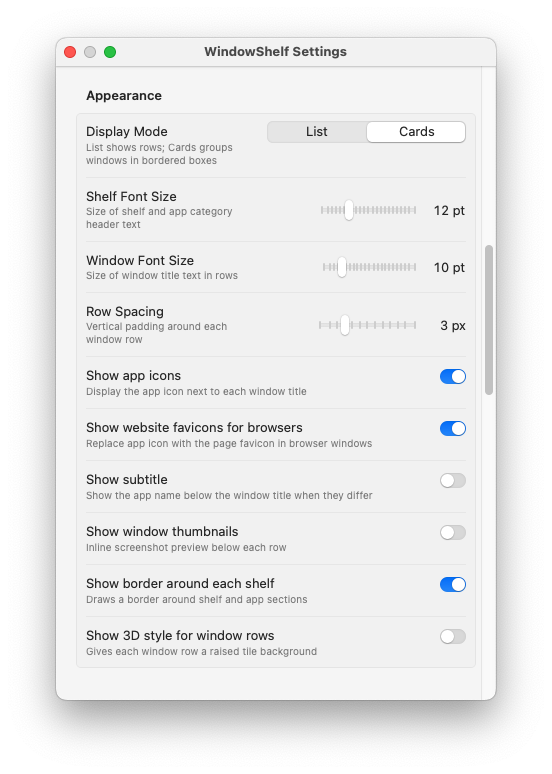
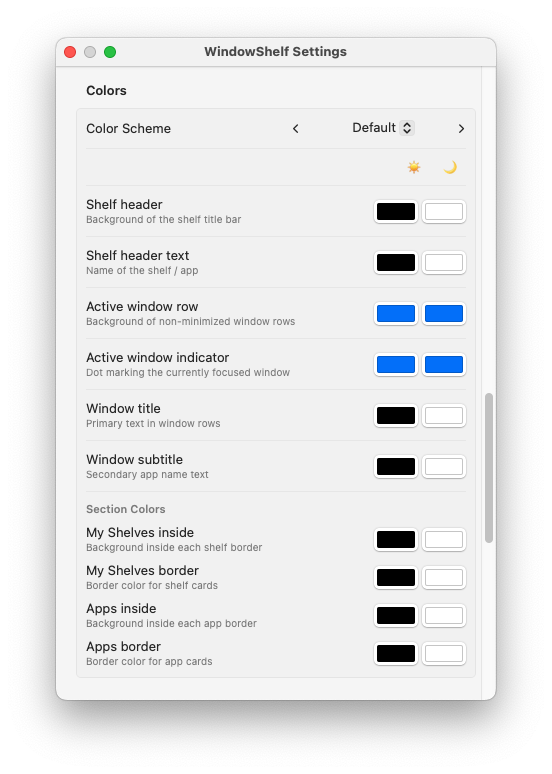
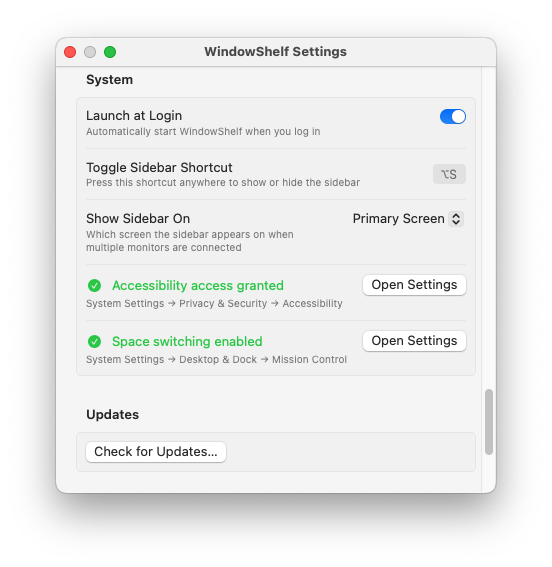
It lists every open window in a sidebar, grouped by app or custom shelf. Collapse what you don't need, hide distractions, and focus on the windows that matter.
No. WindowShelf organizes open windows, not desktop files. For window grouping by task, see window organizer.
Yes. It's a lightweight menu bar app that doesn't interfere with Finder, Stacks, or other tools. It also supports multi-monitor setups.