⌥S
Toggle sidebar
Open or close the sidebar from any app, anywhere.
WindowShelf turns the sidebar into a keyboard-navigable window list. ⌥S to open, arrows to browse, Enter to switch — no mouse required.

Open or close the sidebar from any app, anywhere.
Move selection through every visible window in the list.
Bring the selected window to front and focus its app.
Dismiss the sidebar and return to your current window.
⌥S is a system-wide hotkey. Works from any app, even fullscreen.
Keyboard navigation automatically skips collapsed categories.
When renaming a shelf, keyboard events pass through to the text field.
Here is how a keyboard-first user navigates with WindowShelf, without touching the mouse:
1. Press ⌥S — the sidebar appears instantly. The currently focused window is highlighted in the list.
2. Press ↑/↓ — move through the window list. Selection jumps between visible windows, automatically skipping collapsed categories. Each press moves one row.
3. Press Enter — the selected window comes to front. Its app gains focus. You are now working in that window.
4. Press ⌥S again — the sidebar hides. You are back to the keyboard in your app with no UI interruption.
The entire sequence — summon, navigate, switch, dismiss — takes under two seconds and never requires the mouse. For people who keep hands on the keyboard (developers, writers, terminal users), this is dramatically faster than ⌘Tab cycling or reaching for the trackpad.
Keyboard wins for rapid switching between known windows. If you know the window you need is three rows down from your current position, ⌥S ↓↓↓ Enter is faster than moving the cursor to click it. Keyboard also wins for repetitive workflows: toggling between an editor and a terminal, flipping between two reference documents, or cycling through a fixed set of windows in sequence.
Mouse wins for spatial tasks: dragging windows between shelves, right-clicking for tile options, or scanning thumbnails to find a specific window visually. The sidebar’s click-to-focus behavior is also faster than keyboard navigation when the target window is in the middle of a long list.
WindowShelf supports both equally. The same sidebar that responds to keyboard navigation also responds to clicks, drags, and right-click menus. There is no penalty for mixing input methods — use whatever is fastest for the moment.
macOS provides a handful of window shortcuts: ⌘Tab (switch apps), ⌘` (switch windows within an app), ⌘M (minimize), ⌘W (close), ⌘H (hide). These cover basic operations, but they lack precision when you have many windows.
⌘Tab cycles through apps, not windows. If you have five Safari windows and three VS Code windows, ⌘Tab takes you to the app level — you still need ⌘` to find the specific window. And ⌘` only works within the frontmost app.
WindowShelf’s ⌥S shortcut opens a window-level list that spans all apps. Arrow keys move through individual windows, not apps. Enter focuses the exact window you selected. This fills the gap between macOS’s app-level switching and the need for window-level switching.
Additionally, the sidebar keyboard navigation respects category structure. Collapsed categories are skipped automatically, so arrow keys only move through windows you actually want to see. This makes keyboard navigation practical even with 20+ windows open, because you can collapse irrelevant groups to shorten the list.
To get the most out of keyboard navigation, configure your workspace like this:
1. Create shelves for your main tasks. Group related windows into named shelves: “Coding,” “Reference,” “Communication.” This organizes the sidebar list so keyboard navigation follows a logical structure.
2. Collapse what you don’t need. If you are in coding mode, collapse the Communication and Reference shelves. Now ↑/↓ only moves through coding windows — your editor, terminal, and debugger.
3. Use ⌥S as your home key. Think of ⌥S as the starting point for all window operations. Press it, do what you need (navigate, switch, check what’s open), and press it again to dismiss. Over time, this becomes muscle memory, faster than reaching for the trackpad or moving the mouse to the Dock.
4. Combine with app shortcuts. Use ⌘Tab to switch apps quickly when you know which app you need. Use ⌥S when you need to find a specific window within or across apps. The two complement each other: ⌘Tab for app-level, ⌥S for window-level.
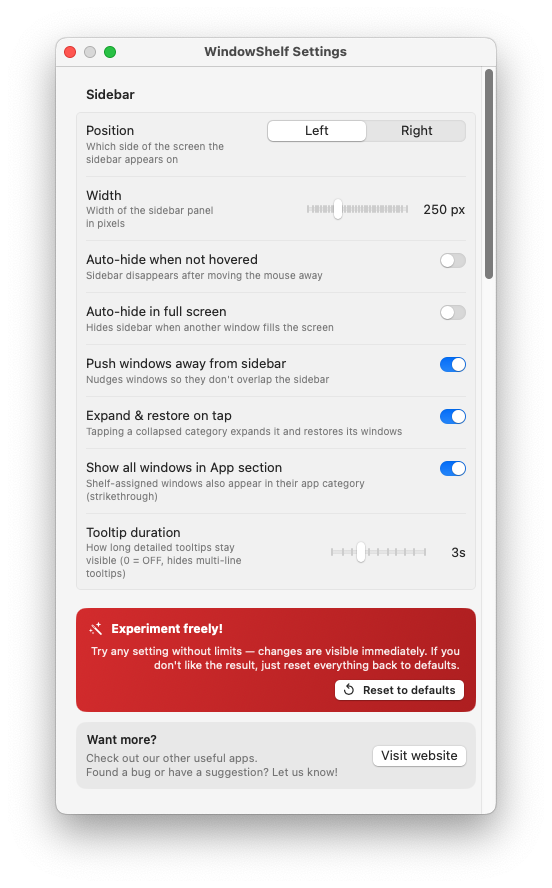
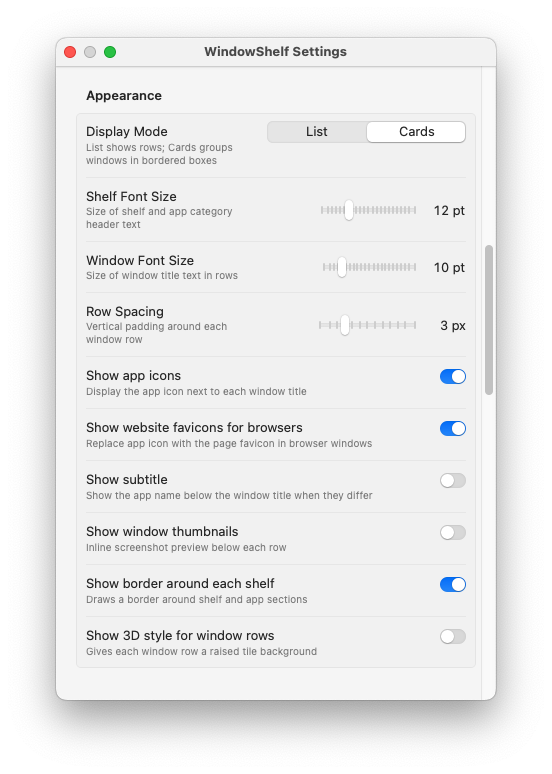
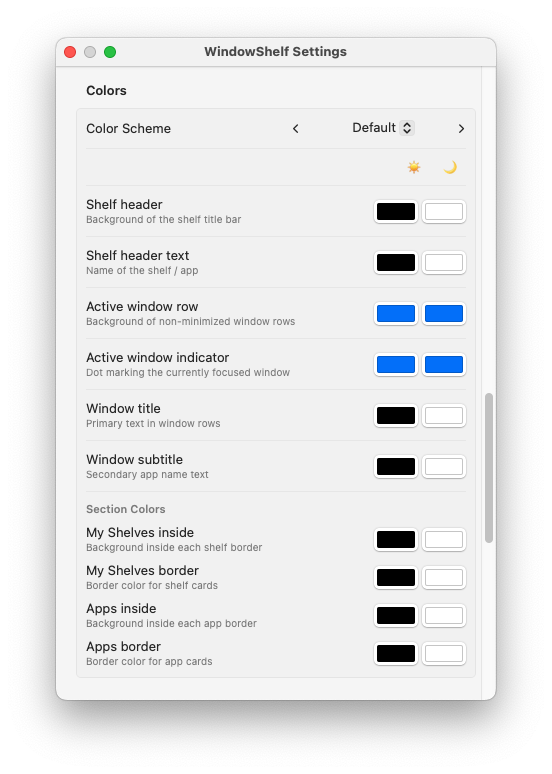
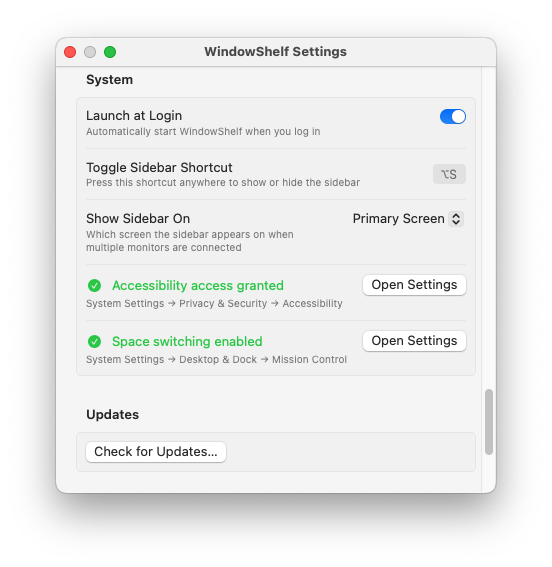
⌥S toggles sidebar, arrows navigate, Enter focuses, Esc closes. See also Command-Tab alternative.
⌥S is the built-in global hotkey. It works system-wide regardless of which app is focused.
Yes — arrows move through all visible windows across categories. Also works as a window switcher.