Switch windows
Click any row to bring its window to front. Keyboard ↑/↓ to navigate, Enter to focus.
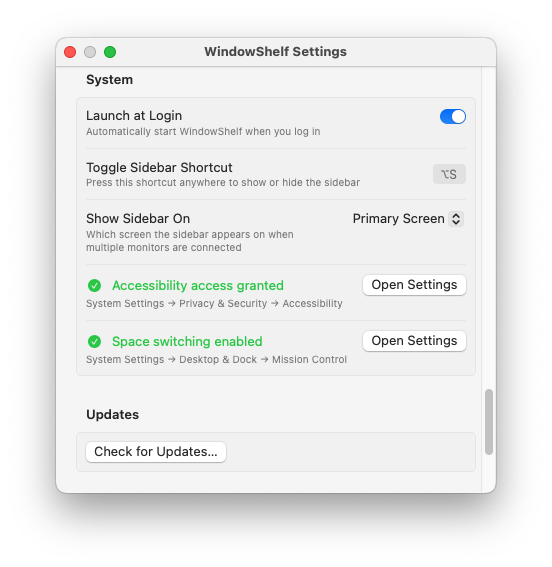
WindowShelf adds a persistent panel to the edge of your screen. It lists all windows, grouped by app or custom shelves — always visible, never stealing focus.

Click any row to bring its window to front. Keyboard ↑/↓ to navigate, Enter to focus.
Drag windows into custom shelves — project-based, task-based, or any grouping you like.
Right-click any window for tiling options: left/right halves, corners, maximize, center.
Toggle category visibility with the eye icon. Collapse groups to reduce clutter.
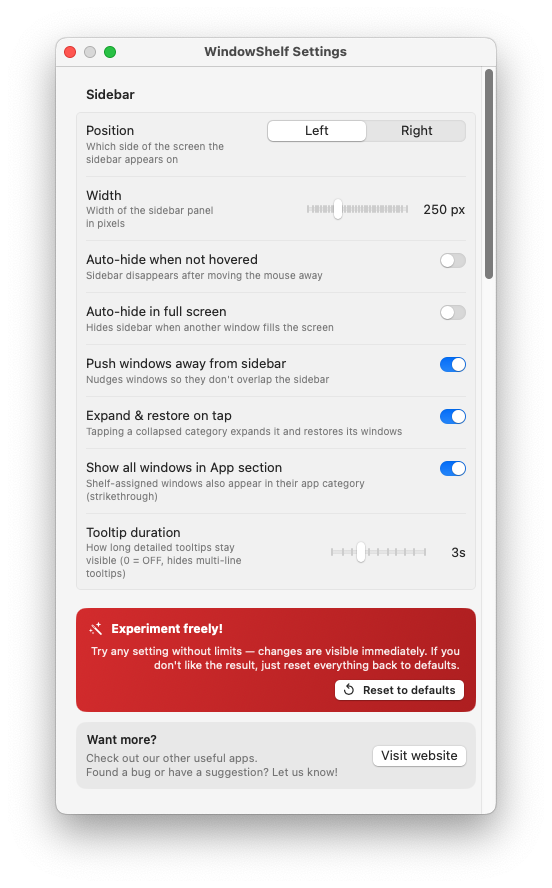
WindowShelf adapts its sidebar to how you work. You can choose between three presentation modes:
Locked visible. The sidebar is always on screen, occupying a fixed strip at the left or right edge. Window tiling automatically adjusts to avoid the sidebar — a “left half” tile means the left half of the remaining screen. This mode is ideal for large or ultra-wide displays where 250 pixels of sidebar width is negligible.
Auto-hide. The sidebar appears when you hover the screen edge and retreats after 1.5 seconds of inactivity. A 3-pixel invisible trigger window sits at the screen edge at screensaver-level priority, detecting mouse proximity. When revealed, the sidebar slides in smoothly. When it hides, your desktop is completely unoccupied. This mode works best on laptop screens where every pixel counts.
Auto-hide with fullscreen trigger. When a window is fullscreen or zoomed to cover the screen, the sidebar uses a faster mouseUp-based trigger instead of hover timing. This ensures you can still access the sidebar even when a fullscreen app (like a video player or IDE) covers the edge. The sidebar appears above the fullscreen window at the floating panel level.
The sidebar is more than a window list — it is a real-time report on your desktop state. Each row contains:
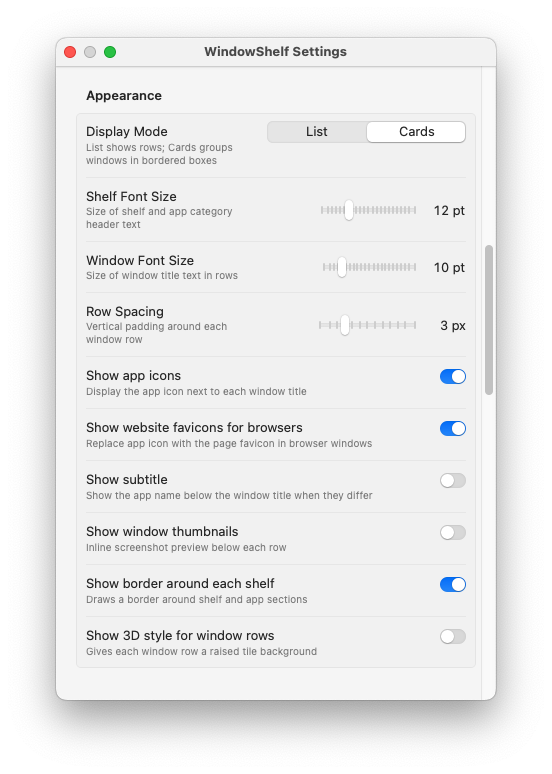
App icon — the standard macOS app icon or, for browser tabs, the website’s favicon. Instant visual identification without reading text.
Window title — the full title of the window, not just the app name. For browser tabs, this is the page title. For documents, it is the file name.
Subtitle — for documents with a path or browser tabs with a URL, a smaller secondary line provides additional context.
Active dot — a colored indicator marks the currently focused window. At a glance, you know exactly which window has focus.
Minimized state — minimized or hidden windows appear dimmed. You always know what is visible on screen versus what is tucked away.
Optional thumbnail — a 120px-wide snapshot of the window’s content, updated on background refresh. Toggle in Settings → Appearance.
The macOS Dock shows app icons. Hover an icon and you see a tooltip with the app name. Right-click and you get a list of recent documents or open windows. But you can only interact with one app’s windows at a time, and the Dock never shows you the full picture of what is open across all apps.
WindowShelf’s sidebar shows windows, not apps. Every open window from every running application appears in one scrollable list, grouped by category. You see window titles, active states, and optional thumbnails at a glance — without hovering, without right-clicking, without switching context.
The Dock also lacks management actions. You cannot tile a window from the Dock, move a window to a named group, or collapse an entire category. The sidebar offers all of these through right-click context menus and drag-and-drop. For users who manage more than a handful of windows, the sidebar replaces most of what the Dock does for window management while adding capabilities the Dock was never designed for.
Another key difference: the Dock’s position is fixed at the bottom (or left/right) of the screen and takes up space you might want for windows. WindowShelf’s sidebar can auto-hide to zero footprint, or lock to the left or right edge. When locked, tiling automatically respects the sidebar’s width, so your windows never overlap it. The Dock offers no such integration with window placement.
A non-activating NSPanel that floats on the screen edge. Never steals focus, visible on all Spaces.
Yes — disappears after 1.5s, reappears on edge hover. See window organizer for more.
Yes. Pin to primary or follow the cursor. See multi-monitor setup details.