Sidebar-aware tiling
All positions auto-adjust to avoid the sidebar. No overlap, no manual offset.
Right-click any window in the sidebar and pick a tile position: left, right, corners, maximize, or center. WindowShelf snaps it instantly, respecting the sidebar width.

All positions auto-adjust to avoid the sidebar. No overlap, no manual offset.
Right-click a category header to tile all its windows into a vertical column.
Two additional positions for full-screen usage and centered floating windows.
Tiling respects per-screen bounds and menu bar height on each display.
Most window-snapping tools on macOS follow the same pattern: grab a title bar, drag it to a screen edge or corner, and the window fills a predefined zone. Rectangle, Magnet, and macOS Sequoia’s native tiling all use this approach. It works, but it has quirks:
Imprecise targeting. You have to hit a narrow pixel zone at the edge. On large monitors, dragging from center to corner covers a long distance. Overshoot, and nothing happens.
Single window at a time. Drag one window left, release, drag another right, release. Tiling four windows into corners means four separate drag operations.
No persistent menu. Once you drop the window, the snapping interface disappears. If you want to rearrange, you start dragging again.
WindowShelf takes a different approach: right-click any window in the sidebar and choose a tile position from the context menu. Left half, right half, top-left corner, bottom-right corner, maximize, center — one click. No dragging. No edge targeting. And the sidebar is always there, so repositioning a window later takes one right-click, not a cross-screen drag.
When the sidebar is locked visible, it occupies a strip at the screen edge. Window tiling automatically accounts for this. A “left half” tile places the window in the left half of the remaining screen area, not the full display.
This means snapped windows never overlap the sidebar. On an ultra-wide monitor, you can lock the sidebar on the left and snap windows into halves or quarters of the remaining space. If the sidebar is 250 pixels wide and your monitor is 3440 pixels, tiles use the rightmost 3190 pixels as their canvas.
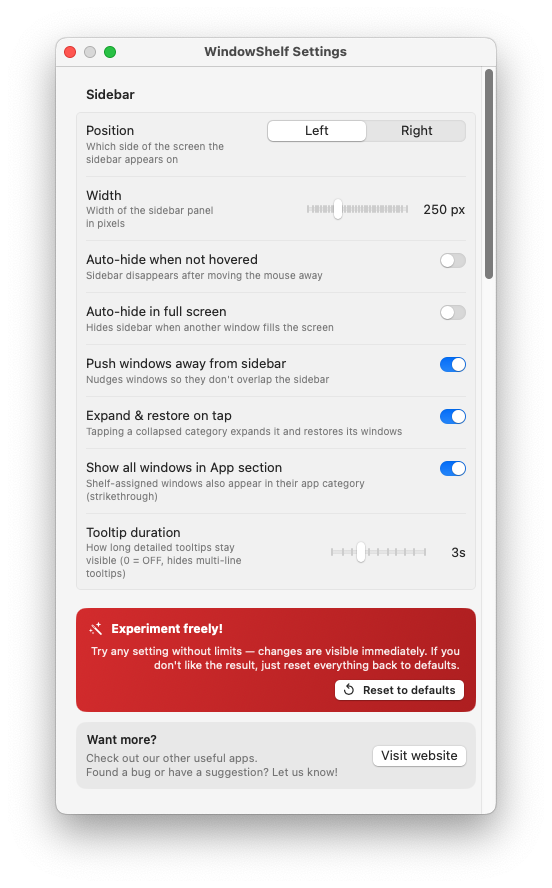
When the sidebar is in auto-hide mode, tiles use the full screen width. The layout adjusts automatically when you switch modes — no manual repositioning needed.
Category tiling takes this further: right-click a category header and choose “Tile All Windows.” Every window in that group arranges into a vertical column with configurable alignment (left, center, or right). Useful for keeping three Finder windows or four browser tabs neatly stacked without manual placement.
WindowShelf supports eight tile positions, each available from the right-click context menu on any window row:
Left Half / Right Half — the window fills exactly 50% of the screen width and 100% of the height. The classic side-by-side layout for comparing documents, coding next to a browser, or reading while writing notes.
Top Half / Bottom Half — the window fills 100% width and 50% height. Less common but useful for stacking a terminal below an editor, or putting a video call above your work area.
Top-Left / Top-Right / Bottom-Left / Bottom-Right — quarter-screen tiles. Each window occupies exactly 25% of the screen. Perfect for monitoring four dashboards, or keeping a reference, an editor, a terminal, and a preview all visible simultaneously.
Maximize — the window fills the full available screen area (accounting for the sidebar if locked). Unlike macOS’s green-button fullscreen, this does not create a new Space. The window stays on your current desktop, and the sidebar remains accessible.
Center — the window moves to the center of the screen at a comfortable reading width. Ideal for single-document focus: a long article, a PDF, or a writing app where you want centered text without distractions on the sides.
All positions are calculated relative to the available screen area. If the menu bar is visible, tiles account for its height. If WindowShelf’s sidebar is locked, tiles account for its width. The result: pixel-perfect placement every time, with no overlapping or gaps between tiled windows.
Right-click a window row → pick a position. The window moves instantly. See also window tiling.
Yes — all positions auto-adjust to avoid the sidebar panel.
Yes — right-click a category to tile all its windows. Also see arranging windows.