How do I arrange windows without memorizing shortcuts?
WindowShelf provides a visual sidebar with tile controls. Right-click or use the popover — no keyboard shortcuts needed.
WindowShelf lets you position any window into halves, quarters, corners, or center from a sidebar that stays visible. No complex keyboard combos to learn.

The sidebar appears on screen edge hover or via the ⌥S hotkey. All open windows are listed.
Select any window in the list. Choose a tile position from the context menu or popover.
The window moves and resizes instantly. Repeat for other windows to build your layout.
Tile your browser to the left half and your notes app to the right half. Both are fully visible at the same time. If you are reading a PDF as well, place it in a corner — top-right works well because the most important lines are near the top. This layout keeps all your sources visible without overlapping, so you can drag quotes directly from one window to another.
Maximize your editor and tile the terminal to the bottom half. This gives your code most of the vertical space while keeping command output always visible below. If you also need a browser for documentation, tile the editor to the top-left, the browser to the top-right, and the terminal to the bottom half. All three windows coexist without overlap.
Place Slack in the left half, your email in the top-right corner, and a calendar in the bottom-right corner. This dashboard-style layout keeps your communication channels visible so you never miss a message while working. When you are done catching up, collapse the communication shelf in the sidebar and switch to a deep-work layout.
Some window managers require you to drag a window to the edge of the screen and wait for a zone to appear. That works for simple left-right splits, but becomes tedious when you need precise corner positions or want to arrange four or five windows at once. You end up dragging, waiting, resizing, and repeating.
WindowShelf takes a different approach: right-click the window in the sidebar and select a position from the menu. The window snaps instantly — no dragging, no edge detection, no timing. You can arrange an entire workspace in seconds by right-clicking each window in sequence. For category tiling, right-click the group header and every window in that group tiles at once. The difference is tangible when you arrange windows multiple times per day.
If you work with two or more displays, window arrangement becomes more complex. macOS lets you drag windows between monitors manually, but there is no built-in way to tile a window to the left half of your second monitor from the first.
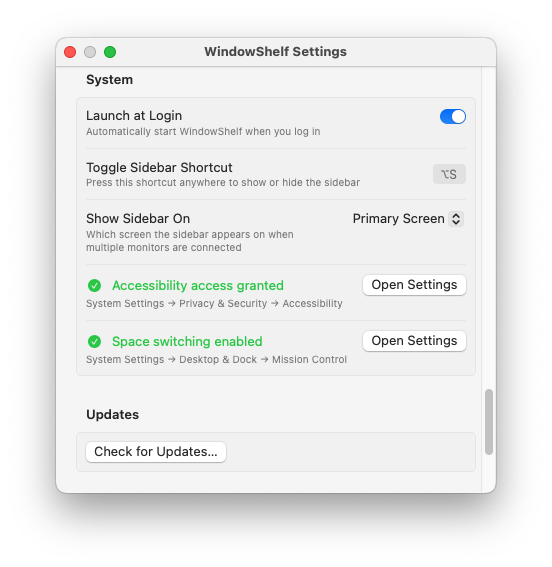
WindowShelf targets the monitor where the sidebar appears. In Settings, you choose whether the sidebar shows on the primary display or follows your mouse cursor. When you right-click a window and tile it, the window moves to the sidebar’s screen and fills the selected position there.
For multi-monitor users, the recommended setup is to set the sidebar to follow the mouse. When you need to arrange windows on your left monitor, move the cursor there (the sidebar appears), then tile. Switch to the right monitor and do the same. Each monitor gets its own arrangement without conflicts.
The sidebar can also tilt entire categories. Right-click a shelf header → “Tile All” and every window in that shelf arranges on the sidebar’s current screen. This is particularly useful for sending a whole project’s windows to one display while keeping email and chat on the other.
WindowShelf remembers your sidebar-screen preference across sessions. If you always want the sidebar on your left monitor, set it to "Primary" and make that display your primary in System Settings. For flexible setups (a laptop connected to an external display that changes between different office locations or home), "Mouse cursor" is the better choice since it adapts automatically regardless of which external display is currently connected to your Mac.
WindowShelf provides a visual sidebar with tile controls. Right-click or use the popover — no keyboard shortcuts needed.
Left/right/top/bottom halves, four corners, maximize, center, and category tiling. See also tiling windows on Mac.
Yes. Create a named shelf, drag windows from different apps into it, then tile them as a group.