Less searching across displays
A visible sidebar reduces the time spent scanning multiple monitors for the right app or document window.
WindowShelf is useful on multi-display setups because it gives you a stable, visible control layer. Instead of losing track of what is open where, you can keep window management tied to the screen strategy that fits your desk.

A visible sidebar reduces the time spent scanning multiple monitors for the right app or document window.
Custom shelves and app groups help when one display holds reference material and another holds active work.
WindowShelf responds to screen parameter changes and supports refresh-based layout correction when needed.
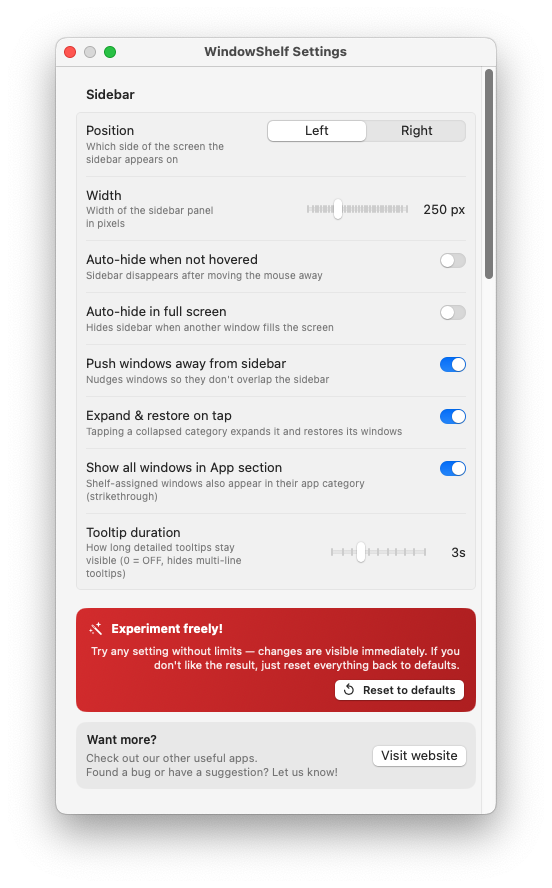
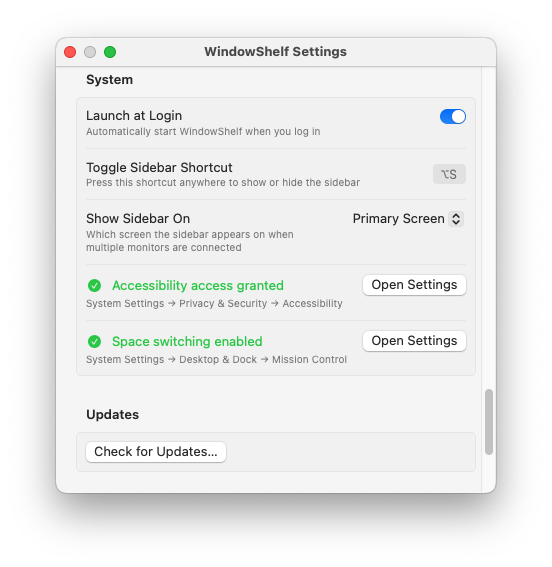
Choose a fixed primary screen or follow your mouse pointer across displays.
Use the primary screen as the sidebar target for a fixed anchor point.
Target the display under your mouse pointer for fluid multi-monitor movement.
Keep edge-trigger behavior aligned with the chosen screen strategy.
Combine visibility with switching, grouping, and tiling on larger setups.
This page is for users searching specifically for a multiple monitor window manager on Mac. It intentionally focuses on display targeting and overview, not generic tiling or general switching copy.
No. It also works well on single-display Macs, but the display-targeting option is especially valuable when you use more than one monitor.
Read Mac window switcher for the dedicated switching angle.
Go to Stage Manager alternative for Mac for the comparison page.