Visual identification
Two Chrome windows? The thumbnail shows which one has Gmail and which has Docs.
WindowShelf captures lightweight thumbnails of every open window. See what's inside each one without hovering the Dock or invoking Mission Control.

Two Chrome windows? The thumbnail shows which one has Gmail and which has Docs.
macOS shows Dock previews on hover. WindowShelf shows them all at once in the sidebar.
Browser tabs get their site favicon next to the title for faster scanning.
The active window gets a colored dot indicator in addition to its thumbnail.
Window titles are useful, but they are ambiguous. Two Chrome windows titled “Gmail” and “Google Docs” are distinguishable by name — but what about three VS Code windows all titled “index.ts — myproject”? Or two Figma windows from different projects? When titles overlap, your brain needs a visual signal to pick the right one.
That is where thumbnails excel. A 120-pixel-wide snapshot of each window gives you an instant visual fingerprint: the Gmail inbox has a red header, the Docs file has a chart, the Figma project has a dark canvas. Your brain pattern-matches the image in milliseconds — far faster than reading and comparing two similar title strings. Research in human-computer interaction consistently shows that visual recognition outperforms text scanning when items share similar labels.
WindowShelf captures thumbnails using CGWindowListCreateImage, a macOS API that takes per-window screenshots at the compositor level — no screen recording permission needed, just the standard Accessibility trust. Images are captured on a dedicated background dispatch queue to avoid blocking the UI thread. Each thumbnail is scaled to a maximum width of 120 pixels, keeping memory usage minimal even with 40+ windows open.
Thumbnails are cached by window ID and refreshed when the window list updates (every 1.5 seconds). If a window’s content hasn’t changed, the cached image is reused. You can toggle thumbnails on or off in Settings → Appearance → Show Thumbnails. When disabled, the sidebar reverts to a compact text-only list.
macOS shows window previews when you hover an app icon in the Dock. But those previews appear only for the hovered app, require you to hold your cursor in place, and disappear when you move away. You cannot see previews for multiple apps at the same time.
WindowShelf shows thumbnails for every window simultaneously, organized by app or shelf. No hovering, no waiting. Scroll the sidebar and every window’s visual content is visible in context. This is especially useful when you have many windows from the same app — the exact situation where titles fail and thumbnails shine.
Enable thumbnails when you work with visually distinct content: multiple design files, browser tabs with different layouts, documents with unique visual signatures. The 120-pixel previews are large enough to differentiate a code editor from a browser from a PDF without reading any text.
Disable thumbnails when you prefer maximum density in the sidebar. Without thumbnails, each row shows an icon, title, and subtitle in a compact format. You can fit 15-20 visible rows in the sidebar vs. 6-8 with thumbnails enabled. For keyboard-centric users who navigate by title rather than visual preview, the compact mode is faster.
You can toggle thumbnails at any time in Settings → Appearance → Show Thumbnails. The setting takes effect immediately — no restart needed. Some users enable thumbnails during review sessions (comparing designs, checking multiple documents) and disable them during focused work when they only need their two or three active windows.
Thumbnails have no measurable impact on CPU or memory. The images are generated via the efficient CGWindowListCreateImage API on a background queue and cached at 120px max width. Even with 30 windows open, the thumbnail cache uses less than 5 MB of memory.
For browser tabs specifically, WindowShelf also fetches web favicons and displays them alongside the window icon. This adds another visual cue: even without a thumbnail, you can identify a GitHub tab by its favicon, a Google Docs tab by the blue document icon, or a YouTube tab by its play button. Favicons load once and are cached for the session, adding zero overhead to the sidebar’s refresh cycle.
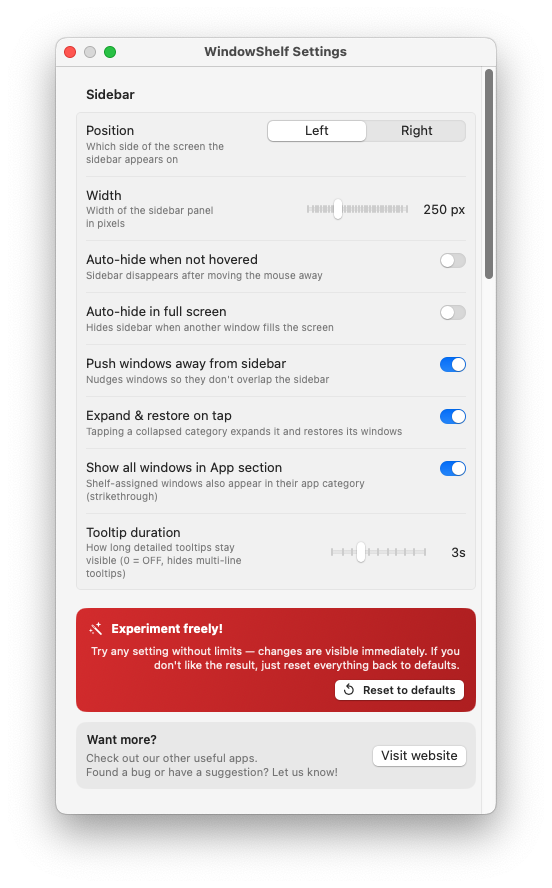
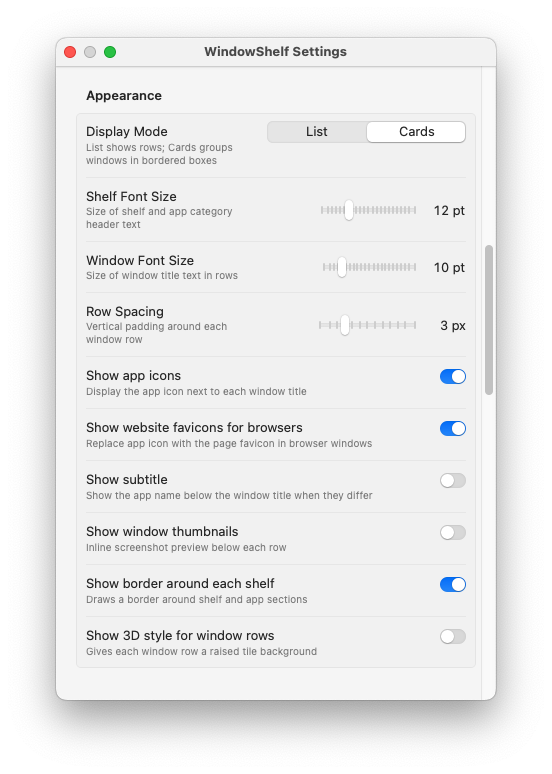
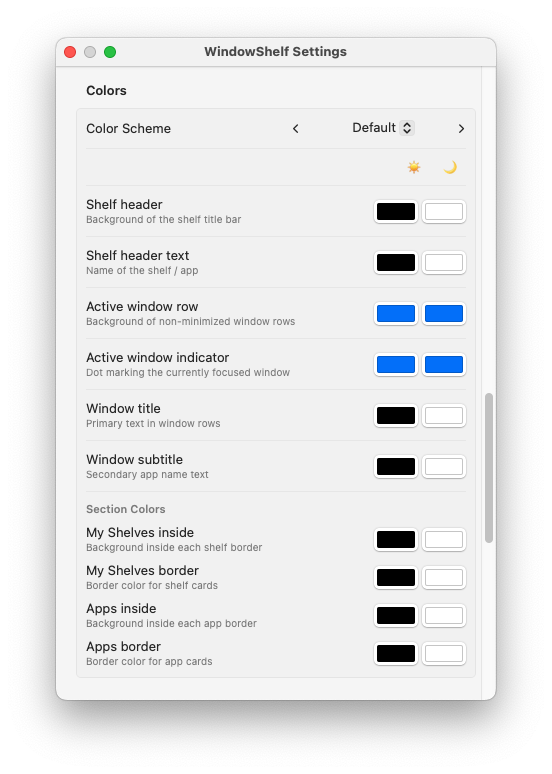
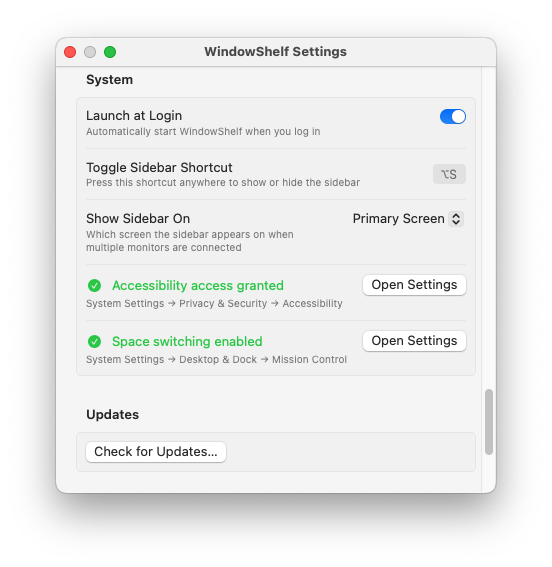
CGWindowListCreateImage captures each window at max 120px width on a background queue, cached by window ID.
No. Small, cached, background-captured. No continuous recording. See also lightweight window manager.
Yes — Settings → Appearance → Show Thumbnails. The sidebar still shows titles, icons, and window switching.