Persistent presence
The sidebar doesn't vanish when you interact with it. It stays where you need it, always listing your windows.
Mission Control is a quick snapshot that vanishes on click. WindowShelf is a persistent sidebar where you can switch, group, tile, hide, and focus windows at any time.

The sidebar doesn't vanish when you interact with it. It stays where you need it, always listing your windows.
From the sidebar you can tile, minimize, close, focus, or drag windows between shelves — not just pick one.
Both tools work independently. Use Mission Control for spatial glances and WindowShelf for persistent management.
Mission Control excels at giving you a spatial overview of all windows in a single glance. The thumbnail spread is intuitive: you see every window’s relative size and position. For quick moments of “where did I put that window?” it works.
But it has three structural limitations. First, it is ephemeral — the moment you click a window, the overlay vanishes. You cannot keep it open while working. Second, it provides no management actions. You cannot close, minimize, tile, or group windows from Mission Control. All you can do is select one window to bring forward. Third, windows are shown as unlabeled thumbnails. When you have twelve small browser windows, they look nearly identical at Mission Control scale. You end up squinting or hovering to read tiny title text.
The core architectural difference is persistence. Mission Control appears on a gesture, lives for a few seconds, and disappears. WindowShelf’s sidebar stays at the screen edge permanently (or auto-hides until you hover the edge, your choice). This matters because window management is not a single action — it is an ongoing need. Throughout the day, you switch, tile, minimize, and organize windows dozens of times. A persistent sidebar handles all of those without requiring you to re-invoke an overlay each time.
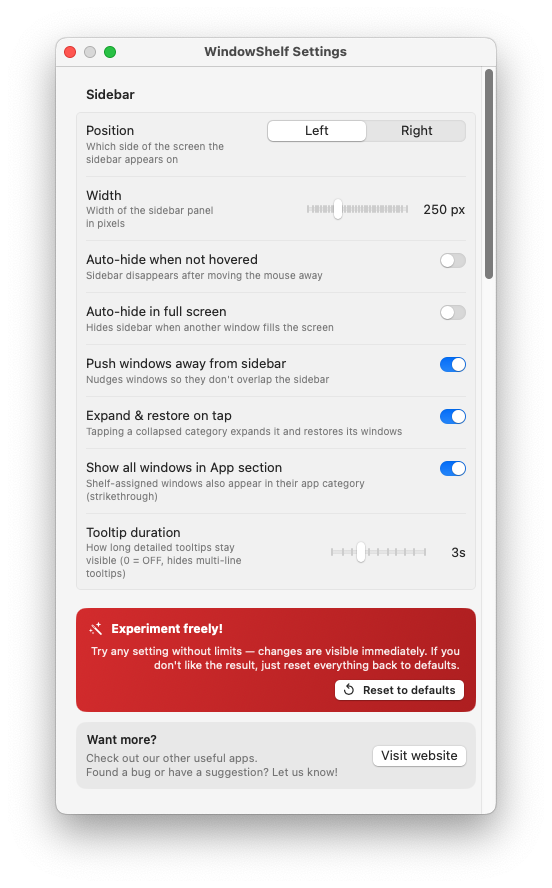
Another difference is information density. Mission Control spreads windows across the whole screen, wasting space to show spatial relationships that rarely matter. The sidebar lists windows vertically in a compact column: icon, title, active dot, optional thumbnail. This format lets you scan 20+ windows in a list that takes up 250 pixels of screen width. The rest of your desktop remains usable while the window list is visible.
Mission Control lets you do exactly one thing: click a window thumbnail to switch to it. That is all. WindowShelf’s sidebar offers a complete set of window management actions from one place:
Tile — right-click a window and snap it to a half, quarter, center, or maximize position. No need to switch to the window first.
Minimize / Restore — click to minimize a window or restore a minimized one. The sidebar shows minimized windows dimmed, so you always know what is hidden.
Close — right-click and close a window without bringing it to front first. Clean up stale windows without leaving your current context.
Group into shelves — drag a window from one category to another. Create named shelves (“Project Alpha,” “Research”) and organize windows by task, not by app.
Collapse / Hide categories — click the chevron to collapse a category or the eye icon to hide it completely. All windows in that group minimize at once.
These actions compound. Over a workday, the ability to tile, close, and reorganize windows from a persistent sidebar — rather than invoking an overlay, selecting one window, and losing the overlay — saves dozens of unnecessary context switches.
Perhaps the most underrated action is category collapse. In Mission Control, you cannot hide a group of windows. Every open window is always visible in the overview, creating visual noise when you only care about a few. In WindowShelf, click one chevron and an entire category’s windows disappear from the sidebar and minimize on screen. The category header remains, showing you that the group exists but is tucked away. This alone makes the sidebar more manageable than any overlay-based approach when you have 15+ windows open.
It's a fleeting overview — shows all windows but vanishes on click. No grouping, no tiling, no management.
Persistent sidebar with titles, icons, active indicators. Group, tile, hide, collapse, switch. See also Stage Manager comparison.
Yes. They work independently. Use both for complementary workflows — spatial overview plus persistent window switching.