Create a shelf
Click "+" in the sidebar to add a named shelf for your project or task.
Create shelves like "Design Project" or "Research" and drag windows into them. No virtual desktops — everything stays on your real screen, just organized logically.

Click "+" in the sidebar to add a named shelf for your project or task.
Drag any window row from the app list into your shelf. It stays there across restarts.
Collapse other groups. Tile all shelf windows into a column. Work in context.
Shelf names, order, and window assignments are saved to UserDefaults and restored on launch.
Double-click a shelf header to rename it. Keyboard events pass through to the text field.
Drag shelf headers to reorder them in the sidebar. Categories and shelves coexist seamlessly.
Fold shelves you're not using. Hide them entirely with the eye icon.
macOS Spaces (virtual desktops) and WindowShelf shelves both help you organize windows, but they solve different problems:
Spaces separate windows physically. Each Space is a distinct virtual desktop. Switching between Spaces triggers a full-screen animation. Apps can live on one Space or all Spaces. The limitation: you can only see one Space at a time. If your editor is in Space 1 and your browser is in Space 2, you cannot see them side by side.
Shelves separate windows logically. All windows live on the same desktop. Shelves are named groups in the sidebar — “Frontend Sprint,” “Research,” “Communications.” You drag windows between shelves to categorize them. Collapse a shelf to hide its windows from view; expand it to see them all. At any moment, you can tile one shelf’s windows across the screen without affecting others.
The practical difference: Spaces force context switches (you leave one desktop for another). Shelves allow context coexistence (all groups are accessible in one sidebar, on one desktop). Many users combine both: one Space per major context (Work vs Personal), with shelves for sub-projects within each Space.
Here is a concrete example of creating a workspace for a web development project:
1. Create a shelf. Right-click in the sidebar → Add Shelf. Name it “Website Redesign.”
2. Assign windows. Drag your VS Code editor, Chrome DevTools, Figma design file, and Terminal into the shelf. They now appear grouped under the “Website Redesign” header.
3. Tile the shelf. Right-click the shelf header → Tile All Windows. All four windows arrange into a clean column layout.
4. Collapse other shelves. Click the chevron on your “Email” and “Slack” shelves (or the app categories). Their windows minimize, leaving only your project windows visible.
5. Work. Switch between project windows by clicking them in the sidebar. When a Slack message arrives, expand the Communications shelf, respond, and collapse it again.
The shelf remembers your assignments across app restarts. Tomorrow morning, the same “Website Redesign” shelf appears with the same windows (as long as the apps reopen their previous documents).
WindowShelf saves shelf definitions and window assignments to UserDefaults. Here is what persists and what does not:
Shelf names, order, collapse/expand state, and hidden state — all persist. Your “Frontend Sprint” shelf will be in the same position, with the same expanded/collapsed state, after a reboot.
Window-to-shelf assignments — persist via window signatures (bundle ID + window title). When an app reopens the same document, WindowShelf recognizes the signature and reassigns the window to its shelf automatically.
Window positions — do not persist automatically. WindowShelf reads positions live from the Accessibility API. If you tiled four windows into quadrants before shutdown, their positions depend on how each app restores its own windows.
The practical effect: your organizational structure (shelves, groups, assignments) survives restarts. Your spatial layout (where each window sits on screen) depends on app behavior. Since most productivity apps remember their last window position, the result is usually seamless — you launch your apps, and WindowShelf reclassifies each window into its saved shelf within seconds.
Tip: Name your shelves descriptively (“Q1 Report,” “Blog Migration,” “Client Calls”) rather than generically (“Stuff,” “Misc”). Good names make the sidebar scannable and help you remember which project each shelf belongs to, even after a weekend away from your Mac.
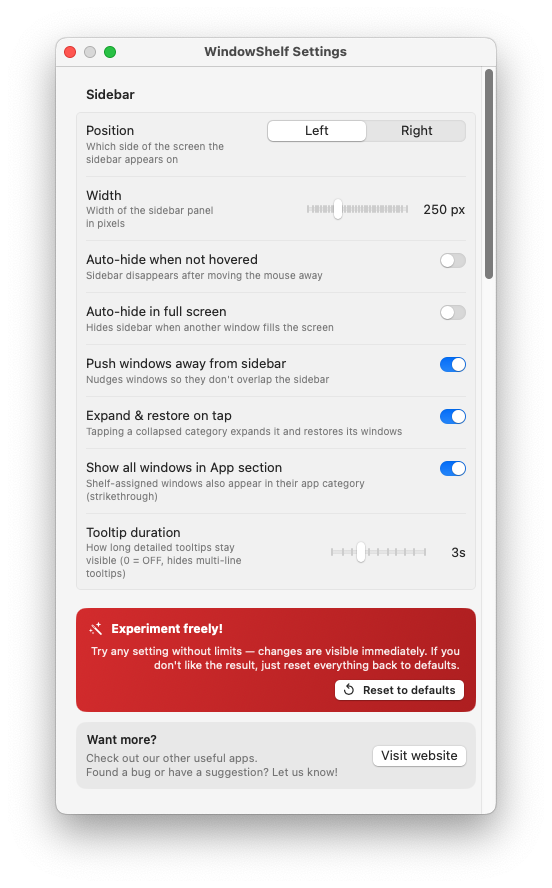
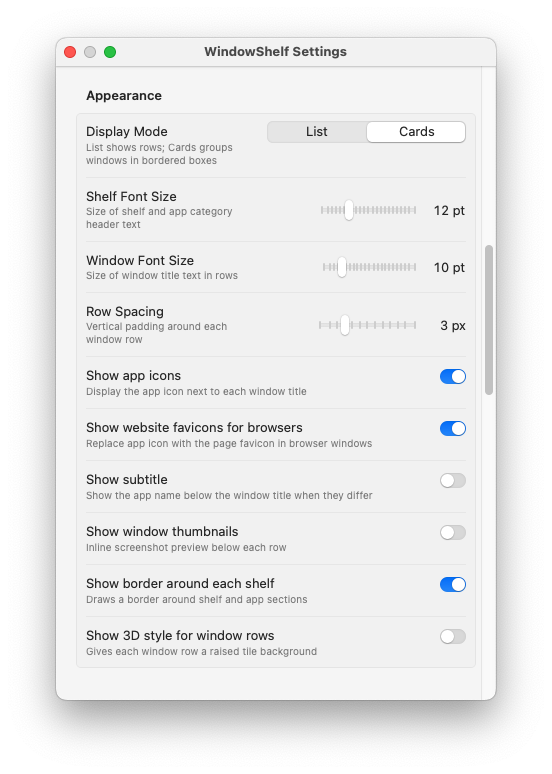
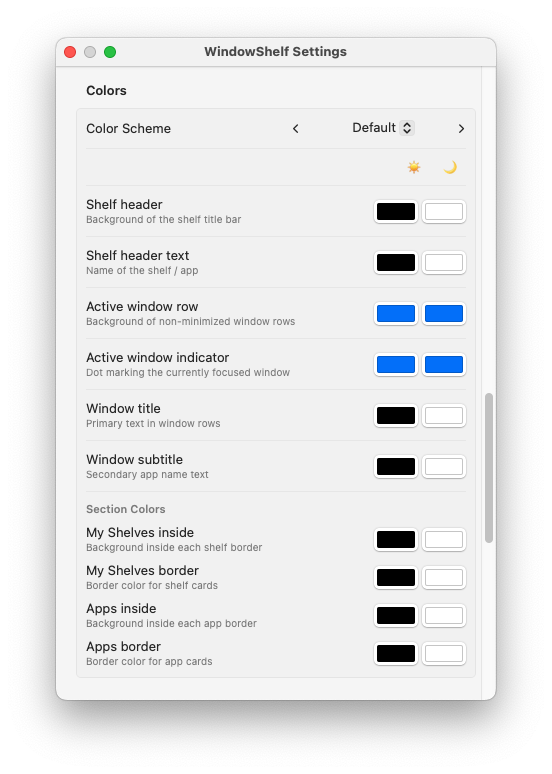
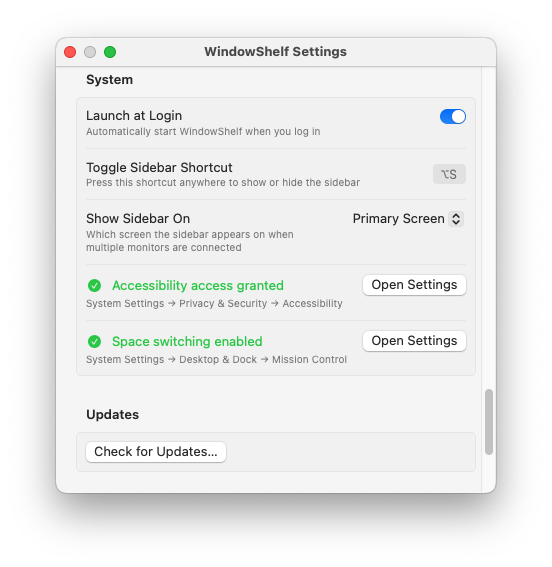
Named groups you drag windows into. Persistent across restarts. See also window organizer.
Spaces are virtual desktops. Shelves are logical groups on the same screen — all windows visible, just organized.
Yes — right-click the header → Tile. Also check window snapping for individual positioning.